An interactive Internal Family Systems (IFS) workbook you download and own · version 1.2.1
Meet your parts. Then watch them move.
Sunroom turns Internal Family Systems into something you can put your hands on: drag your parts around a glowing Self on an IFS parts map, flip cards, answer a question a day, talk a protector through a guided exercise, and then press play and watch a time-lapse of your own inner world changing over weeks. It is private (it runs from a folder on your computer), it is surprisingly fun, and it is the kind of useful that shows up in your next hard conversation.
$30, once. Every future edition is free for purchasers · zip, 273 KB · Works in Chrome, Edge, Brave and Arc on macOS, Windows and Linux
No account, no server, nothing uploaded. Your parts, journal and check-ins live in data/sunroom-data.json inside the workbook folder, encrypted with a passphrase only you know; copy the folder to a thumb drive or a cloud folder and you can never lose it.
Fun to use
Stickers you drag, cards you flip, a sun you breathe with, a translator that rewrites “I’m such a failure” as something a part could say. It feels like a game and works like a practice.
Movies of your inner world
Save a snapshot of your map or a check-in, and later press play. Sunroom animates every snapshot into a time-lapse that ends at today. We haven’t seen this anywhere else.
Useful by Thursday
Know your protectors by name, catch a blend in sixty seconds, rehearse a hard conversation with the parts that dread it, and bring a printable summary to your therapist.
Private, and yours forever
Lives in a folder on your computer with no account and no server. Buy once; every future edition is free and never touches your data.
New to IFS?
What Internal Family Systems is, in a paragraph
Internal Family Systems (IFS) is a model of the mind developed by Richard C. Schwartz, PhD, in the 1980s. It says the mind is naturally made of parts, none of them bad: managers that run your days and keep old pain out of sight, firefighters that put out emotional fires by any means, and exiles, the young parts carrying the pain everyone else is organized around. Underneath the parts is the Self: calm, curious, compassionate, and able to lead. “Parts work” is the practice of getting to know your parts from that Self, one at a time, until they trust you enough to relax.
Sunroom is a self-guided IFS workbook for exactly that practice: it teaches the model from scratch in Chapter 1, gives you a parts map to draw your own system, and walks you through the classic exercises, including the 6 F’s and unblending, at your own pace. It suits people exploring IFS on their own, people doing homework between sessions with an IFS therapist, and therapists who want a private tool to recommend. It is not therapy, and it says so.
Free guides
Three things to read before you buy anything
Written from the workbook’s own lessons. Each one stands on its own; none of them needs Sunroom.
How to map your parts
What an IFS parts map is, how to draw one on paper or on screen, and what to notice once your system is in front of you.
Read the parts-mapping guide → Guide 2IFS exercises you can do alone
Six step-by-step practices, from a five-minute check-in to the 6 F’s, with what each step is for and where to stop.
Read the exercises → Guide 3IFS glossary
Forty-two terms, from parts and Self to unburdening and backlash, in plain language and in one place.
Open the glossary →The part nobody else has
A time-lapse of you
Most journals tell you what you felt on a Tuesday. Sunroom shows you the shape of the whole season. Every time you press Save snapshot, the map is stamped with the date. Weeks later, press Play movie and watch it happen: the Critic drifting a little further from the Self, the Scroller shrinking after you finally asked what it was protecting, a brand-new part appearing the week of the move.
- Every snapshot is a frame. The workbook takes one automatically each day you use it, and you add labelled ones at the moments that matter: “after the letter to Dad,” “first good week.”
- Smooth, not slideshow. Parts glide between positions, grow and shrink, fade in and out. Scrub, step, change the speed, jump to any date.
- Your Self-energy moves too. The Self Check chapter plays your saved check-ins as a morphing spider graph or rising bars, so “I think I’m doing better” becomes something you can see.
- Take it with you. Download any movie as a video file to keep, or to show a therapist what three months of work looks like in sixty seconds.
Snapshots are tiny (they store positions, not pictures), so you can take hundreds and the folder stays small.
The tour
Six chapters you’ll actually open
Each chapter is its own page, and they all talk to each other: a part you name in an exercise appears on your map, its answers land in its profile, and the journal remembers which part said what.
Learning you do with your hands
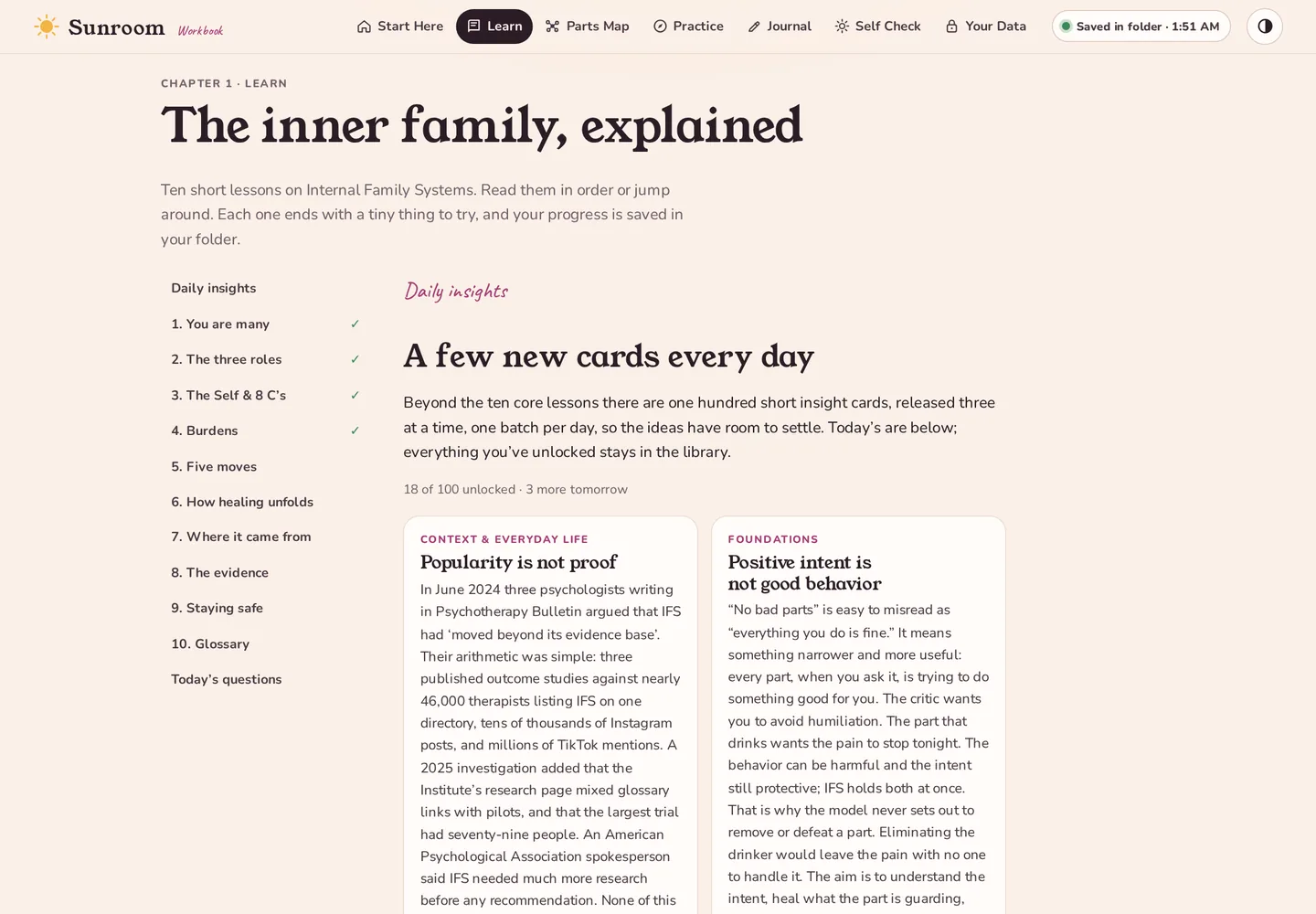
Tap the diagram to meet managers, firefighters and exiles. Flip a card and find out what The Critic is actually afraid of. Type “I’m such a failure” into the translator and watch it become “A part of me feels like a failure,” which is the whole model in one sentence. Ten lessons cover the Self and its 8 C’s, burdens, the moves you’ll use every day, and how healing unfolds.
- One hundred short insight cards, unlocked three per day so they have room to settle, kept in a library
- One hundred quiz questions served three a day; a question you get right retires from the pool
- An honest chapter on the evidence, criticisms included, and a 42-term glossary
A map you can push around
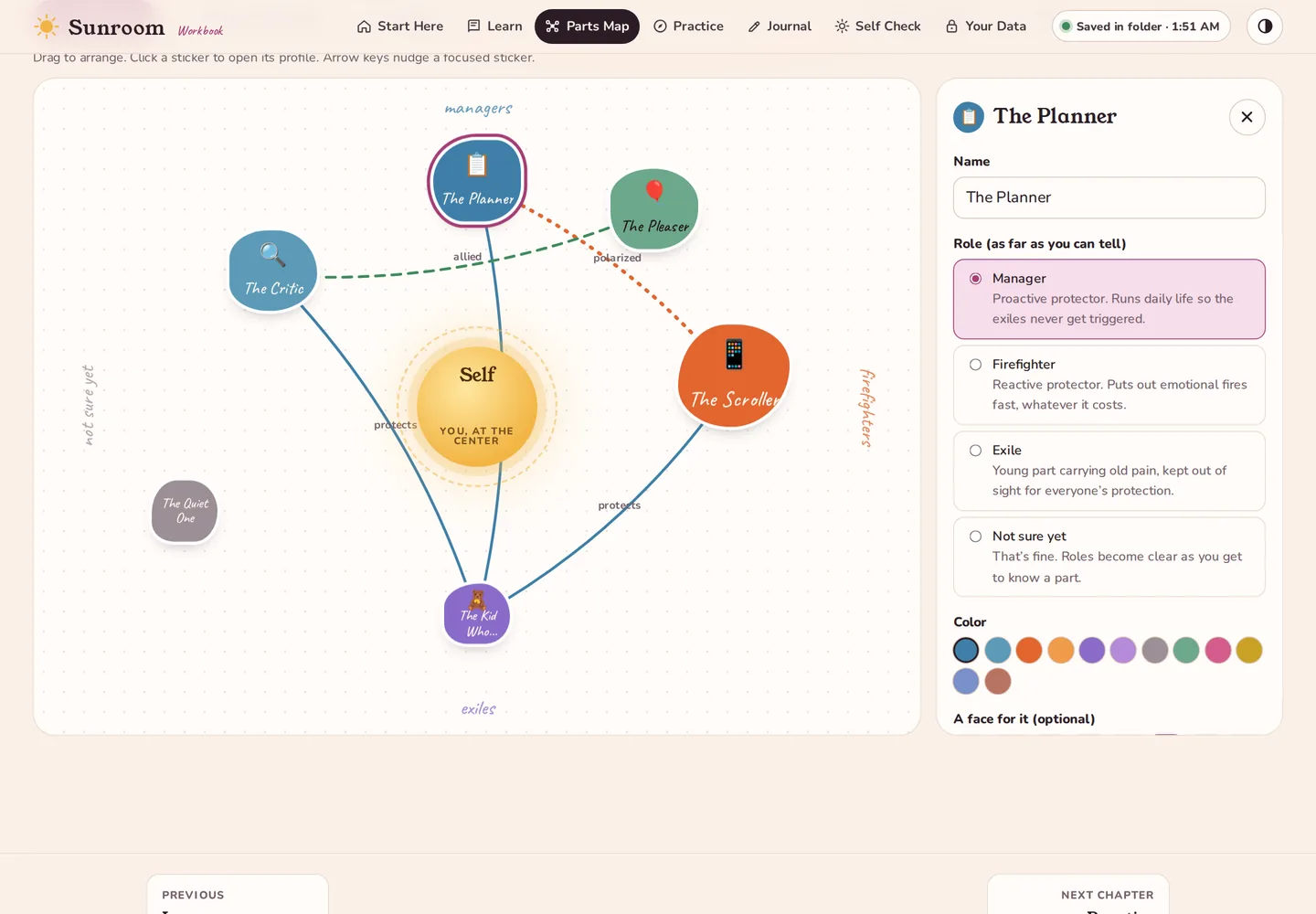
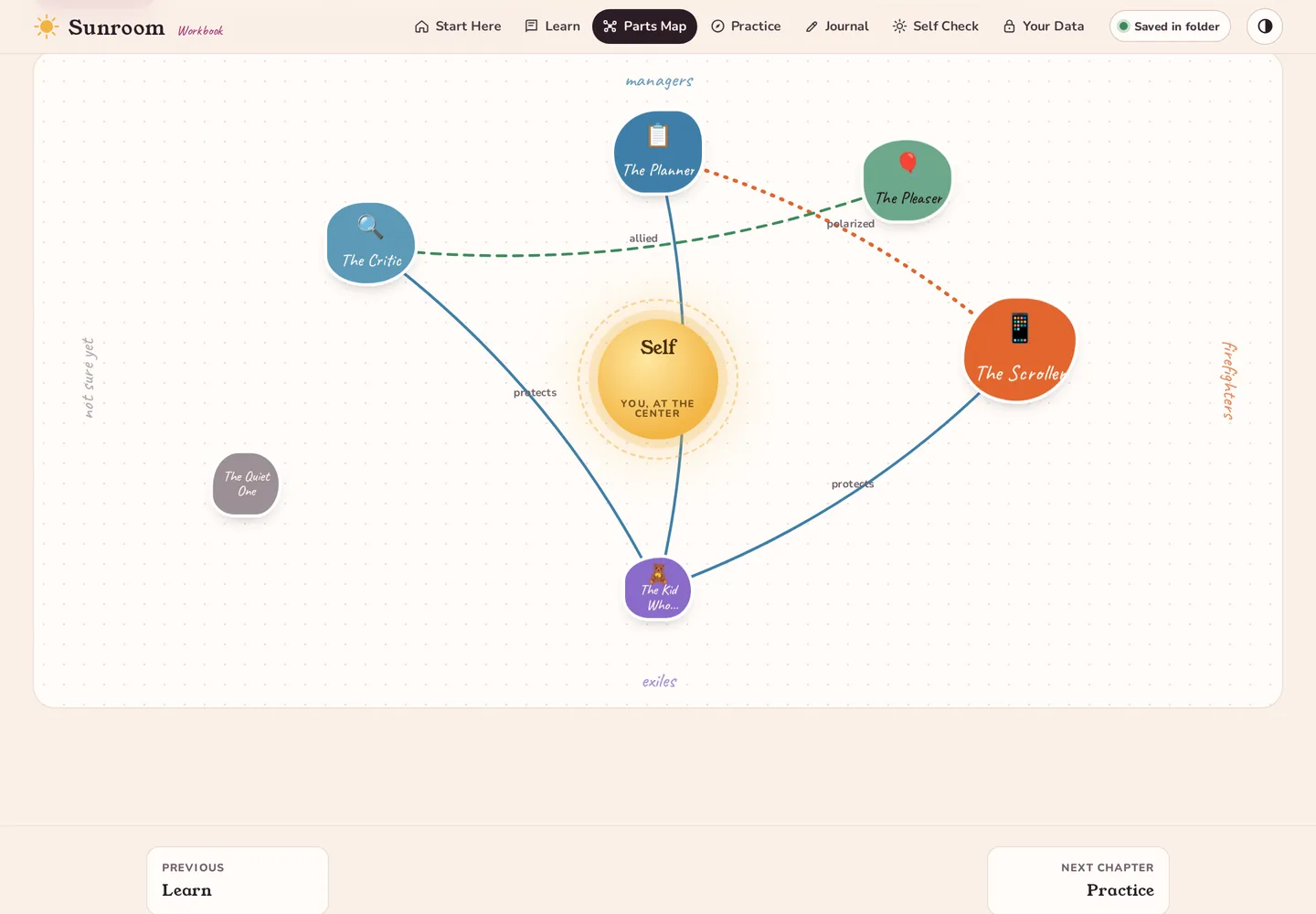
Your parts are hand-lettered stickers that bob gently until you grab one. Drag The Planner closer to the Self when it relaxes; push The Scroller to the edge on a good week. Give each part a color, a face, an age, a place in the body, its job, its fears, what it protects and what it needs. Draw the lines: who protects whom, which pairs pull against each other. It looks like a doodle and reads like a diagnosis you made yourself.
- A starter list of 66 commonly named parts (Inner Critic, Procrastinator, Lonely Part…) to tick and drop onto the map, each with a one-line job to edit
- A gallery for each part: attach photos or drawings that feel like it, during the 6 F’s or any time, kept as files in the folder
- List view and keyboard control for accessibility
- Save the map as an image
- An example system to play with, clearly labelled
Watch your system move
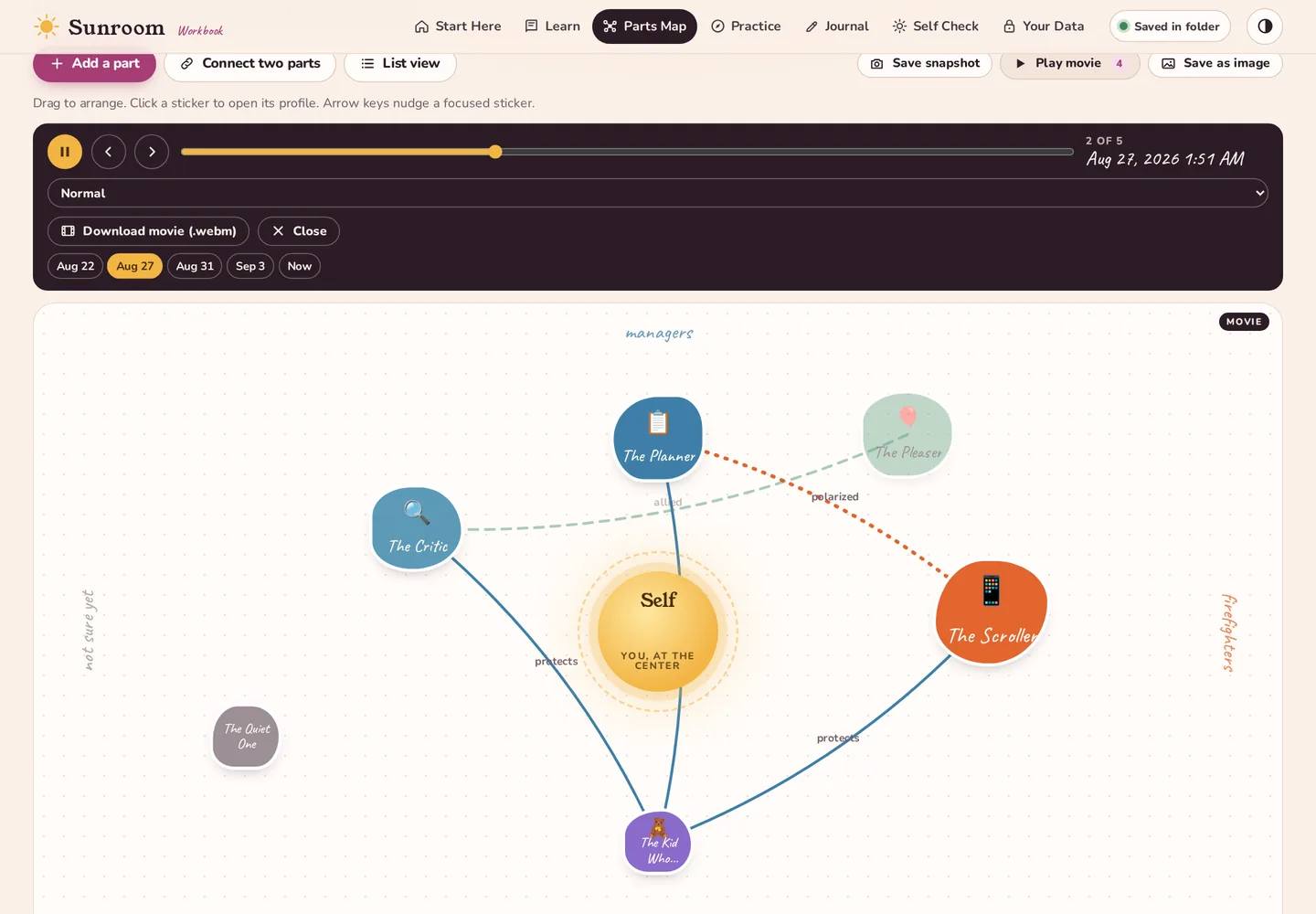
Press Save snapshot and the map is stamped with the date and, if you like, a label: “after the letter to The Critic.” The workbook also keeps one automatic snapshot per day you use it. Play movie then glides through every snapshot up to the present: parts drifting closer to the Self, protectors relaxing, new parts appearing.
- Scrub, step, or change the speed; jump to any date
- Download the movie as a video file to keep or share with a therapist
Exercises that talk back
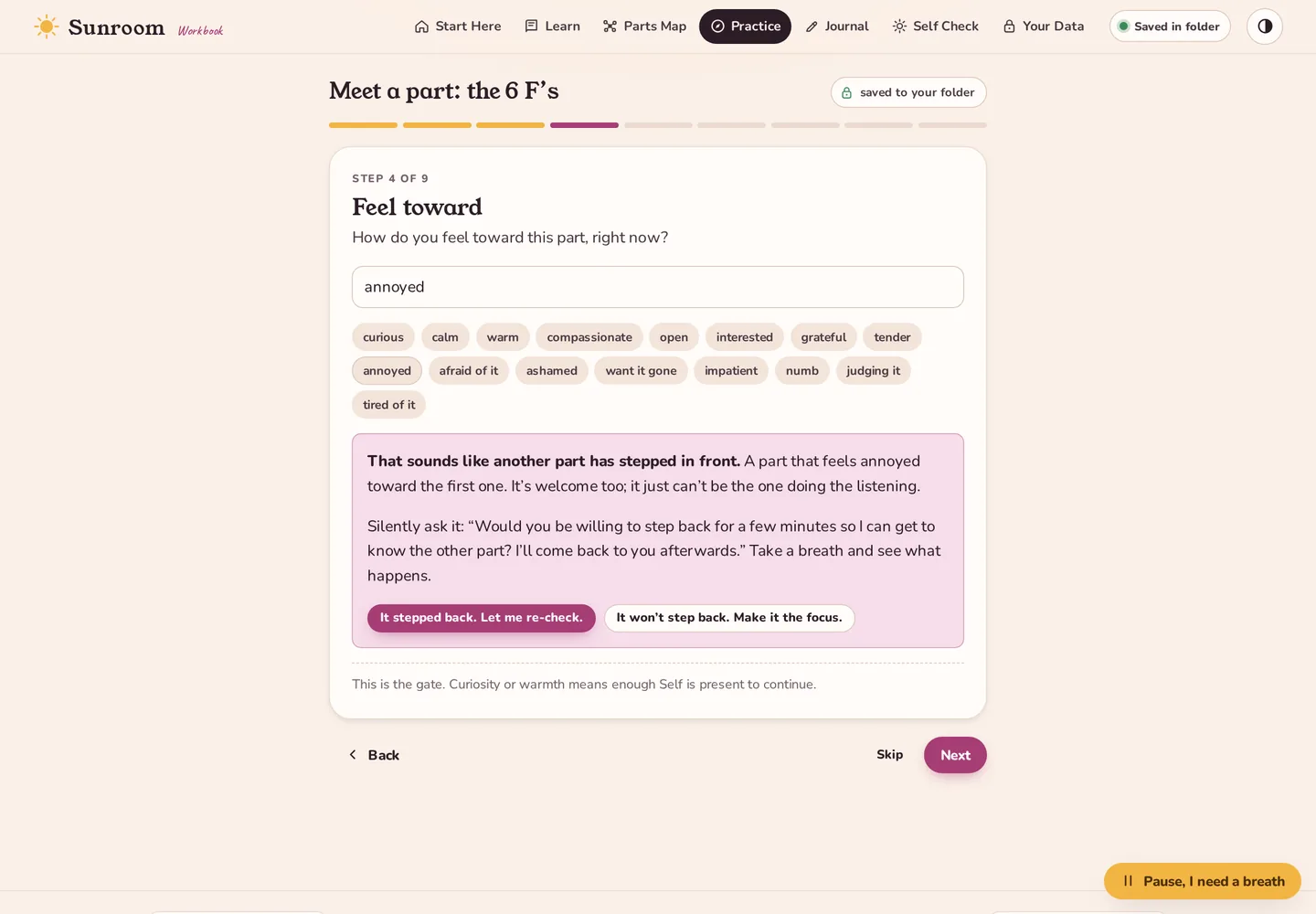
Who’s here today, the classic 6 F’s, a sixty-second unblend, two polarized parts at a table, a fire drill before a hard conversation, and a breathing minute with a sun that swells and shrinks with you. Type “annoyed” at the “How do you feel toward it?” step and the workbook stops you: that’s another part talking, here’s how to ask it to step back. Nothing is graded; everything is saved.
- A “Pause, I need a breath” button with grounding steps
- A Breathe page one click from every chapter: smooth cycle at your own pace, 4-7-8, box breathing
- Every exercise saves to your journal and updates the part’s profile
A journal that knows your parts
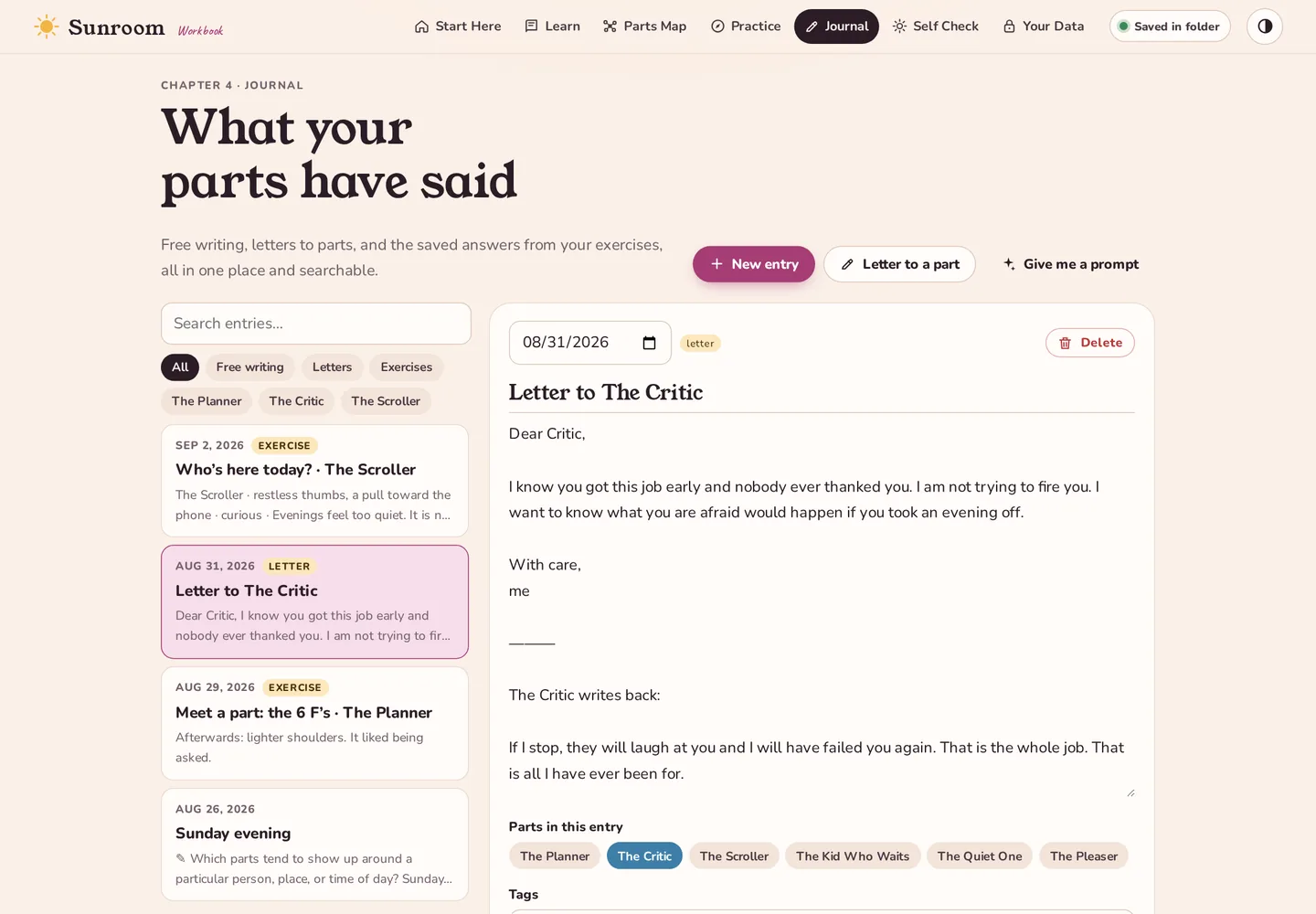
Write a letter to The Critic, then switch hands and let it write back. Every exercise you finish files itself here, tagged with the part it was about, so one click shows you everything The Scroller has ever told you. Stuck? A prompt button offers one of two dozen questions that go somewhere.
Self-energy you can see rising
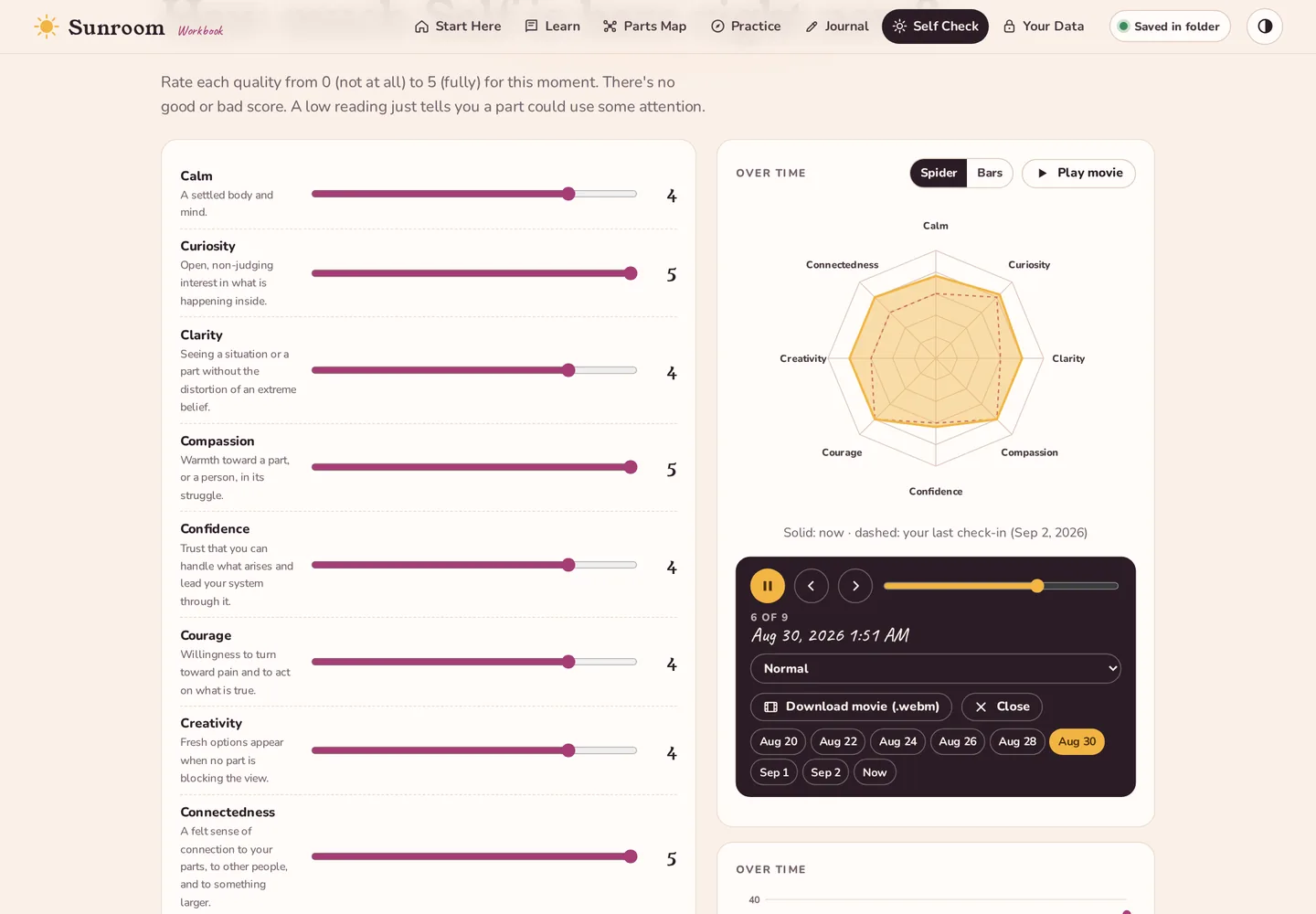
Slide eight dials (calm, curiosity, clarity, compassion, confidence, courage, creativity, connectedness) and the spider graph reshapes as you go. Save it and it’s stamped with the time. Come back in a month, press Play movie, and watch the shape breathe outward check-in by check-in. A low reading isn’t a bad grade; it’s a part waving.
- Spider or bars, your choice
- Export the movie as a video file
Your data, explained without hand-waving
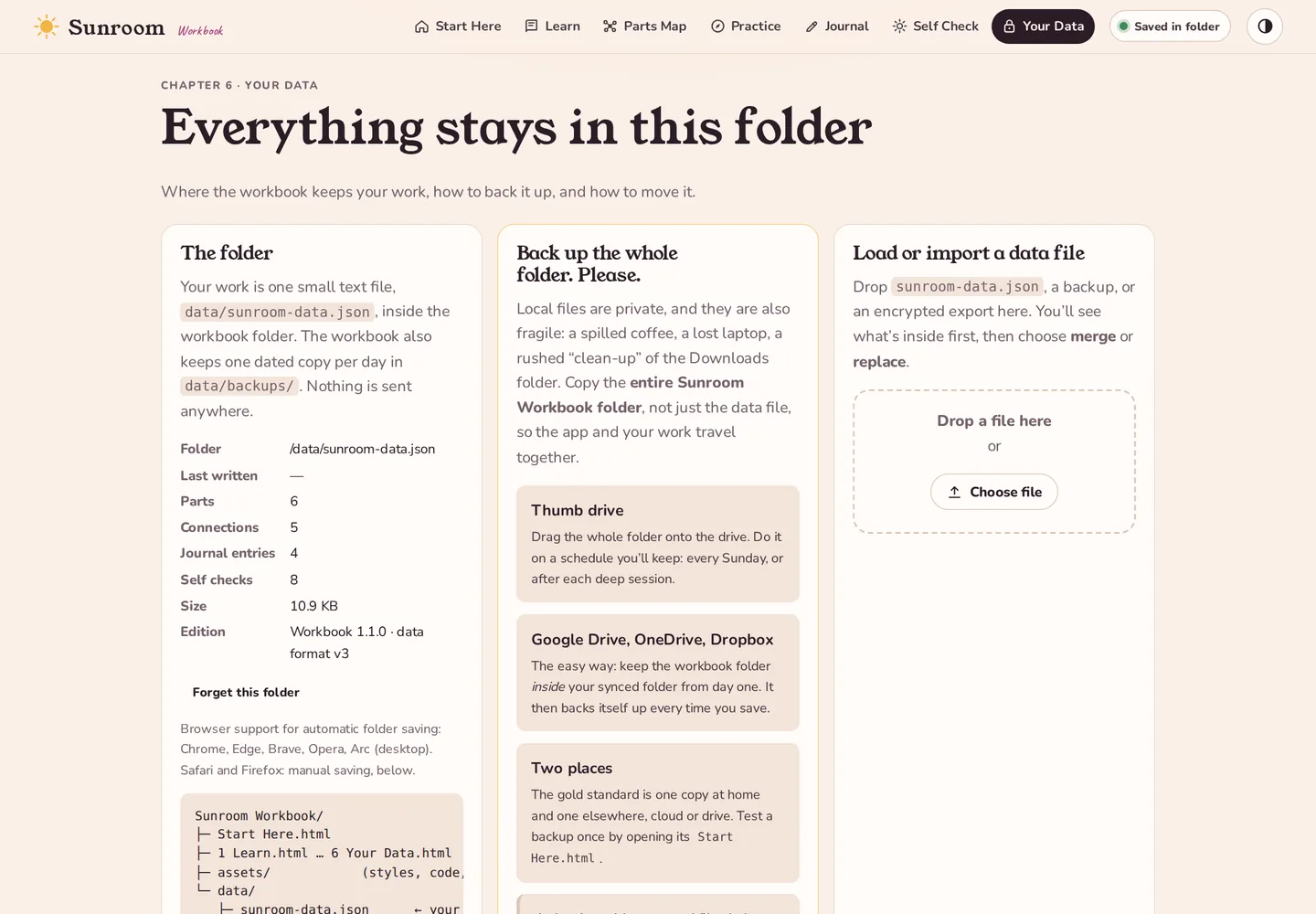
Exactly where the file is, how automatic saving works, the dated copies the workbook keeps for you, your passphrase (change it, lock the workbook, or switch to a plain file), and the tools to export a backup, load one back, or erase everything. Plus a readable summary you can print and hand to a therapist: your parts, their jobs and fears, your check-ins, your journal.
How it works
A folder that is also an app
The workbook is ordinary web pages that open straight from your disk. Modern browsers can, with your permission, write into a folder you choose. Sunroom uses that, and nothing else.
Sunroom Workbook/
├─ Start Here.html         open this one first
├─ 1 Learn.html
├─ 2 Parts Map.html
├─ 3 Practice.html
├─ 4 Journal.html
├─ 5 Self Check.html
├─ 6 Your Data.html
├─ assets/                 styles, code and fonts
└─ data/
   ├─ sunroom-data.json    ← everything you write
   └─ backups/
      └─ sunroom-data-2026-09-03.json …
You open Start Here.html in Chrome, Edge, Brave or Arc. The page loads from your disk; the browser’s network tab stays empty.
You press “Connect this folder” and pick the workbook folder. The browser asks once whether the page may read and write there; you can revoke that any time. Then you choose a passphrase. The data file is encrypted with it before anything is written, and you are asked for it each time you open the workbook.
Everything saves itself. Each change is written, sealed with AES-256, to data/sunroom-data.json within half a second. The first save of each day also drops a dated copy into data/backups/. Prefer a plain, readable file? One switch on Your Data.
Next time, it remembers. The browser keeps the folder on file. After a restart it may ask you to click “Reconnect” once; that’s the permission being re-granted, not your data being touched.
Move it anywhere. Copy the folder to another machine, open Start Here.html, connect, and your work is already there.
Update without fear. A new edition is a file swap: replace the pages and assets/, keep data/. The data file is versioned; a newer edition upgrades it in place and saves the original first, and an older edition will only ever read a newer file, never write over it. The format is documented in SCHEMA.md inside the folder.
Install
Two minutes, no installer
Nothing is added to your system. Delete the folder and Sunroom is gone.
Get the zip from Ko-fi
After checkout, Ko-fi shows a download link (and emails it). Your browser saves sunroom-workbook.zip (273 KB) to your Downloads folder. You can come back to the same Ko-fi page for every future edition.
Unzip and move it
Double-click the zip (Mac) or right-click → Extract All (Windows). Then move the Sunroom Workbook folder somewhere permanent: Documents, or straight into your Google Drive, OneDrive or Dropbox folder so it backs itself up.
Open Start Here.html
Right-click it → Open with → Chrome, Edge, Brave or Arc. Bookmark the page; it’s just a file on your disk.
Connect the folder
Press Connect this folder, choose the Sunroom Workbook folder, and allow the browser to edit files in it. The green “Saved in folder” pill in the corner tells you it worked.
sunroom-data.json for you to drop into the folder. It works; it’s just one more step. Chrome, Edge or Brave is the smoother choice.Backups
Back up the whole folder. Please.
A folder on one computer is completely private, and it is also completely alone. A dead drive, a lost laptop, a well-meaning “clean up the Downloads folder” and months of inner work are gone. Sunroom keeps dated copies inside the folder, but that helps only if the folder itself survives. So copy the entire Sunroom Workbook folder, not just the data file, somewhere else. Two places is the goal.
two places,
once a week.
Thumb drive
Drag the whole Sunroom Workbook folder onto the drive and let it replace the old copy. Pick a rhythm you’ll keep: every Sunday, or after each session that mattered.
- Cheap, offline, and readable by nothing but you
- Keep the drive somewhere other than your laptop bag
Google Drive, OneDrive, Dropbox
The easiest backup is the one you never have to remember. Keep the workbook folder inside your synced folder from day one and every save is mirrored within seconds.
- Google Drive: put it in
My Drive(via Drive for desktop) - OneDrive: anywhere under your
OneDrivefolder - Dropbox: anywhere under your
Dropboxfolder - Use it on one computer at a time; the last one to save wins
If the cloud makes you uneasy
A cloud provider can read files in its own folder. Sunroom’s data file and its dated copies are encrypted by default (AES-256-GCM, key derived from your passphrase with PBKDF2), so a synced folder only ever sees ciphertext. Pictures attached to parts are ordinary JPEGs; keep those out of the cloud if they are sensitive.
- Forgotten passphrase = unrecoverable file, by design
- Test a backup once by opening its
Start Here.html
The workbook keeps count: press I made a backup today on Start Here or Your Data, and it will gently nag you when it has been more than a week.
Compatibility
Where it runs
| Browser | Opens the workbook | Saves into the folder automatically | Notes |
|---|---|---|---|
| Chrome, Edge, Brave, Opera, Arc (desktop) | Yes | Yes | Recommended. Choose “Allow on every visit” when asked and it won’t ask again. |
| Safari (macOS) | Yes | Manual | Use Save data file / Load on the Your Data page. |
| Firefox | Yes | Manual | Same as Safari. |
| iPhone, iPad, Android | Mostly | Manual | Readable, but built for a bigger screen and a real folder. |
How it compares
Printed workbook, subscription app, or Sunroom?
All three can be good. They differ in where your work lives and what happens to it over time.
| Printed IFS workbook | Typical IFS app | Sunroom | |
|---|---|---|---|
| Where your work lives | On paper, in the book | Usually on the app maker’s servers, behind an account | In a folder on your computer; no account, nothing uploaded |
| Price model | Buy the book once | Usually a monthly or yearly subscription | Pay once; every future edition is free |
| Parts map | Draw it on a page | Often, on a phone screen | Drag-and-drop map with profiles, connections, and picture galleries |
| Watching change over time | Flip back through pages | Sometimes a history list | Time-stamped snapshots that play back as a movie; Self-energy check does too |
| Guided exercises | Written prompts | Guided, sometimes with an AI chat | Six step-by-step exercises that notice when another part has stepped in |
| Works offline | Yes | Sometimes | Always; it never contacts the internet |
| Your data if the maker disappears | Still on your shelf | Depends on export options | Still in your folder, in a documented format any standard tool can decrypt |
“Typical IFS app” describes the common pattern, not any particular product; check the app you are considering.
Questions
Things people ask
Is Sunroom an IFS app?
Can I do IFS parts mapping on my own?
How is this different from the printed IFS workbooks?
What exactly am I buying?
How do updates work?
assets/ over the old ones, leave data/ alone. Your work is never touched by an update; the workbook upgrades an older data file in place and keeps a copy of the original in data/backups/.Is Sunroom therapy?
Does it work offline?
Is there a subscription?
Why does the browser ask for permission to edit files?
data/sunroom-data.json and the dated copies next to it. You can see the file yourself: a small JSON envelope with the ciphertext inside, or plain JSON if you switch the passphrase off.Can I use it on two computers?
Start Here.html on the other machine and connect the folder there. Just don’t have it open on both at the same moment; the last save wins.What happens if I lose the folder?
Can my therapist see it?
Who can read the data file?
What if I forget my passphrase?
What if I open my data with an older copy of the workbook?
Can I edit or extend it?
1 Learn.html, the exercises and glossary in assets/content.js. Keep the file names the same and the pages will keep finding each other.Get it
Take the workbook home
One zip, bought once on Ko-fi. Unzip it, open Start Here.html, connect the folder, and back it up. That’s the whole setup. Every future edition is free.
- Start Here + six chapter pages
- Ten lessons, 100 insight cards and 100 questions released a few a day, six guided exercises, 42-term glossary
- Parts map with snapshots and movies, journal, Self check with movie, backup and export tools
- README, SCHEMA.md, and a lifetime of free editions
- Version
- 1.2.1 (21 October 2026)
- Size
- 273 KB, 16 files
- SHA-256
37bcaa60aa9fe31e94e78830f08a7a7e1d05e002d7906dea46fb652317144bbe
Compare with the file you downloaded to be sure it’s the real one.- Requires
- A desktop browser. No install, no admin rights.
- License
- Personal use, on as many of your own computers as you like. Fonts under the SIL Open Font License.